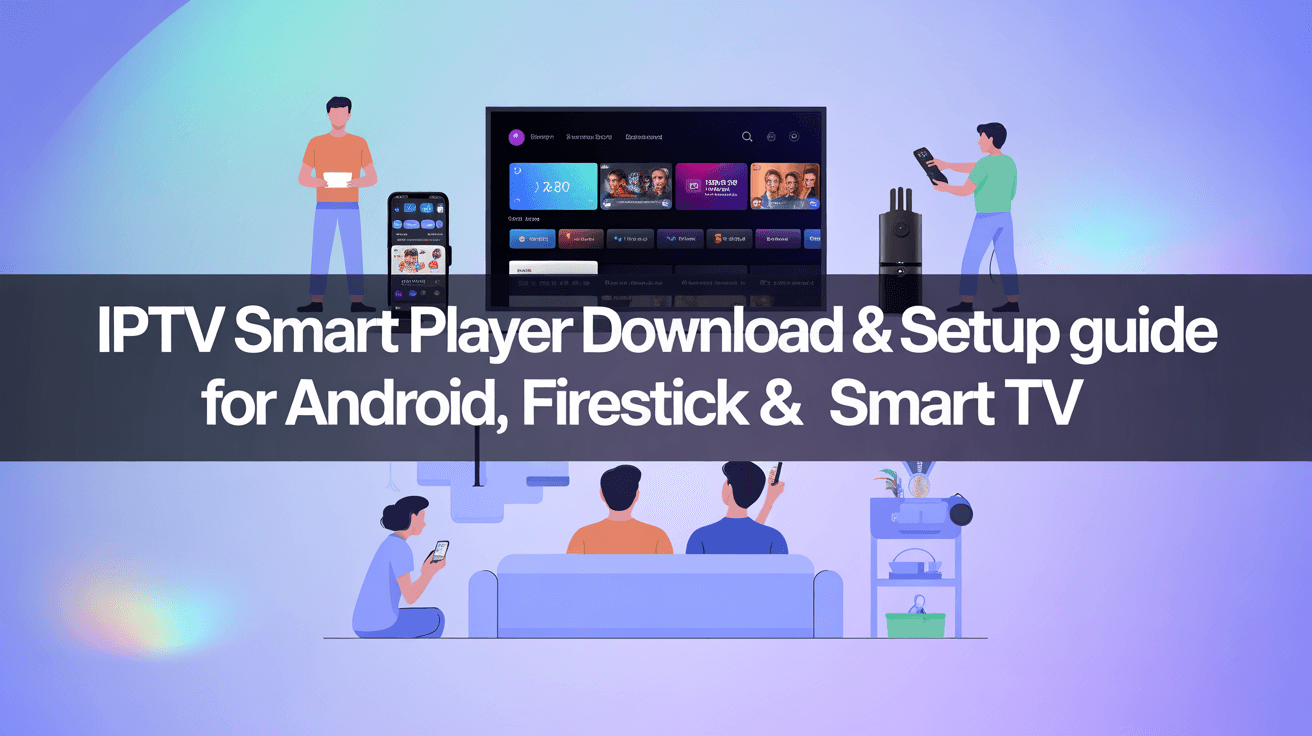
In the world of digital entertainment, IPTV Smart Player has become a favorite option for people who want to watch live TV and on-demand content smoothly on different devices. This guide explains how to download and set up the IPTV Smart Player on Android phones, Firestick, and smart TVs. Whether you’re new to technology or have a lot of experience, the step-by-step instructions here will make it easy for you to install the app. The article covers everything from what your device needs to work properly to solving common problems, so you can get the most out of your streaming experience with IPTV Smart Player.
Overview of IPTV Smart Player
What is IPTV Smart Player?
IPTV Smart Player opens up a whole new world of streaming options, letting you watch live TV channels, movies, and shows as long as you have an internet connection. Say goodbye to expensive cable bills! This app lets you stream content from different IPTV services directly on your device, making it a perfect choice for people who cut the cord and love watching a lot of shows.
Key Features and Benefits
With IPTV Smart Player, you get a lot of great features that are easy to use:
User-Friendly Interface: It has a clean and simple design that doesn’t require any special tech knowledge to use.
Multi-Device Support: You can use it on Android, Firestick, and Smart TVs. It’s like having a handy tool that works everywhere.
Customizable Favorites: You can save your favorite channels or shows for quick access. Who doesn’t want to look organized?
EPG Support: The Electronic Program Guide helps you find what’s on, so you won’t miss your favorite programs anymore. No more asking that friend who always knows what’s happening.
High-Quality Streaming: Enjoy smooth playback and clear picture quality, as long as your internet is fast enough.
System Requirements for Android, Firestick, and Smart TVs
Compatibility with Different Devices
IPTV Smart Player isn’t just picky; it’s quite accommodating! You can run it on a range of devices including Android smartphones, Firestick, and most Smart TVs. Whether you’re on the go or lounging on your couch, this app has got your back. Just check your device’s specifications to ensure it plays nice with the app.
Minimum Specifications Needed
Before you dive into the download, make sure your device meets these minimum specs:
Android: Version 4.4 or higher, because anything older might just get left in the stone age.
Firestick: 1st Gen Firestick or newer; it’s time to let go of that vintage tech.
Smart TVs: Most Smart TVs with a minimum of 1 GB RAM and a decent processor will be good to go. If your TV is older than some of your favorite shows, it might be time for an upgrade.
| Device | Minimum Requirement |
| Android | Version 4.4 or higher |
| Firestick | 1st Gen or newer |
| Smart TV | Minimum 1 GB RAM |
| Internet Speed | Minimum 10 Mbps recommended |
| Storage Space | At least 100 MB free space |
Step-by-Step Download Instructions
Downloading on Android Devices
1. Open the Google Play Store.
2. Search for “IPTV Smart Player.”
3. Tap on “Install” and wait for it to download; contemplate life while you do.
4. Once installed, open the app and get ready to hit that play button!
Downloading on Firestick
1. On your Firestick home screen, navigate to the search icon.
2. Type “IPTV Smart Player” and select it from the results.
3. Hit “Get” or “Download,” and let the magic happen.
4. After installation, find it in your apps, and get ready to binge your heart out!
Downloading on Smart TVs
1. Go to your Smart TV’s app store (it might be called something fancy like “Smart Hub”).
2. Search for “IPTV Smart Player.”
3. Click “Install” and wait for it to do its thing.
4. Launch the app, and voilà! You’re in streaming heaven.
Installation Process for Android Devices
Installing from Google Play Store
If you followed the download instructions above, you’ve already done this part! Simply click “Open” once installed to launch the app. No additional work needed—unless you count choosing what to watch as a daunting task.
Manual Installation of APK File
For those adventurous souls who like to live on the edge:
1. Allow installations from unknown sources in your Android settings.
2. Download the IPTV Smart Player APK from a trusted source.
3. Open your file manager and locate the downloaded APK file.
4. Tap on it to install, and once finished, open the app. Now you can impress your friends with your tech-savvy skills!
Installing IPTV Smart Player on Firestick
Using the Amazon Appstore
Installing IPTV Smart Player on your Firestick through the Amazon Appstore is as easy as binge-watching your favorite series. Simply grab your Firestick remote, and follow these steps:
1. From the Firestick home screen, navigate to the ‘Search’ section (magnifying glass icon).
2. Type “IPTV Smart Player” and select it when it appears in the search results.
3. Click on the app, then choose ‘Get’ or ‘Download’ to begin the installation.
4. Once installed, open the app and prepare yourself for an immersive IPTV experience – popcorn optional.
Alternative Installation Methods
If you’re feeling adventurous and the Amazon Appstore isn’t your cup of tea, you can sideload IPTV Smart Player using these alternative methods:
1. Enable Apps from Unknown Sources: Go to ‘Settings’ > ‘My Fire TV’ > ‘Developer Options’ and toggle ‘Apps from Unknown Sources’ to ON.
2. Install Downloader App: Head back to the home screen, search for and install the Downloader app.
3. Download IPTV Smart Player: Open Downloader, enter the URL for the IPTV Smart Player APK, and click ‘Download.’
4. After the download completes, install the APK and voilà – you’re ready to rock and roll!
Setting Up IPTV Smart Player on Smart TVs
Configuration for Different Smart TV Brands
Setting up IPTV Smart Player on your Smart TV varies slightly depending on the brand, but it’s generally straightforward. Here’s a quick rundown:
Samsung: Go to the Smart Hub, search for the IPTV Smart Player app in the Apps section, and install.
LG: Access the LG Content Store, find the app, and hit the install button.
Android TVs: Navigate to the Google Play Store, search for IPTV Smart Player, and install it like you would any other app.
In each case, after installation, you’ll likely find the app on your home screen ready for config!
Connecting to IPTV Services
Once installed, it’s all about connecting to your IPTV service. Here’s how to get started:
1. Open the IPTV Smart Player app.
2. You will often see a prompt to enter your M3U URL or login credentials provided by your IPTV service.
3. Input the required information and click on ‘Connect.’
4. If you did it right, congratulations! You’re now the proud owner of a fully functioning IPTV setup.
Troubleshooting Common Issues
Installation Errors and Solutions
Running into installation errors can feel like stepping on a Lego, but don’t despair! Here are some common issues and their solutions:
Error: App Not Found: Make sure your Firestick is connected to the internet and that you’ve spelled everything correctly in your search.
Error During Sideloading: If sideloading, double-check that you’ve enabled ‘Apps from Unknown Sources.’
Insufficient Storage: Clear out some unused apps or data to free up space and try again.
Playback Issues and Fixes
If your IPTV content is buffering or not playing at all, try these quick fixes:
Check Internet Connection: Ensure your Wi-Fi is up and running; sometimes the digital gremlins strike!
Reduce Video Quality: Lowering the video resolution may help if your connection is sluggish.
Restart the App: Close and reopen IPTV Smart Player; sometimes, all it takes is a little rebooting magic.
Tips for Optimizing IPTV Smart Player Experience
Best Practices for Streaming Quality
To really elevate your IPTV experience from “meh” to “wow,” follow these best practices:
Wired Connection: Whenever possible, use an Ethernet cable instead of Wi-Fi for a more stable connection.
Reduce Network Congestion: Limit the number of devices connected to your network while streaming to avoid potential bandwidth shortages.
Regularly Update the App: Make sure you’re using the latest version of IPTV Smart Player for all the latest features and fixes.
Customizing Settings for Personal Preferences
Don’t forget to make IPTV Smart Player your own! Customize the settings to fit your viewing style:
Playlist and EPG Settings: Organize your channels and electronic programming guide for easy access to your favorites.
Theme and Layout: Explore options to change themes, layouts, and display settings to suit your aesthetic preferences.
Parental Controls: If kids are around, setting up parental controls can save the day (and your sanity) by keeping the remote out of tiny hands.In conclusion, setting up IPTV Smart Player on your Android device, Firestick, or Smart TV is a straightforward process that can enhance your viewing experience significantly. By following the instructions outlined in this guide, you can enjoy a wide range of content at your fingertips. Should you encounter any challenges along the way, the troubleshooting tips provided will assist in resolving common issues. Now you’re ready to explore the world of IPTV streaming and make the most of this powerful application. Happy watching!
Frequently Asked Questions (FAQ)
1. Is IPTV Smart Player free to use?
IPTV Smart Player is free to download, but access to specific IPTV services may require a subscription or payment.
2. Can I use IPTV Smart Player without an internet connection?
No, IPTV Smart Player requires a stable internet connection to stream content live or on-demand.
3. What types of content can I watch with IPTV Smart Player?
You can watch live TV channels, movies, and series, depending on the IPTV service you subscribe to.
4. How do I update IPTV Smart Player?
To update IPTV Smart Player, visit the Google Play Store or your device’s app store and check for available updates; follow the prompts to install the latest version.